Curved Arrow Video Effect: Guide Your Viewers' Attention
The Curved Arrow Video Effect directs viewer attention in videos, useful for tutorials and presentations. This customizable, smoothly animated effect enhances focus on key areas. Envizion AI's tools can seamlessly integrate such effects, making videos more engaging and professional with minimal effort.
# Curved Arrow Video Effect: Guide Your Viewers' Attention
About Curved Arrow
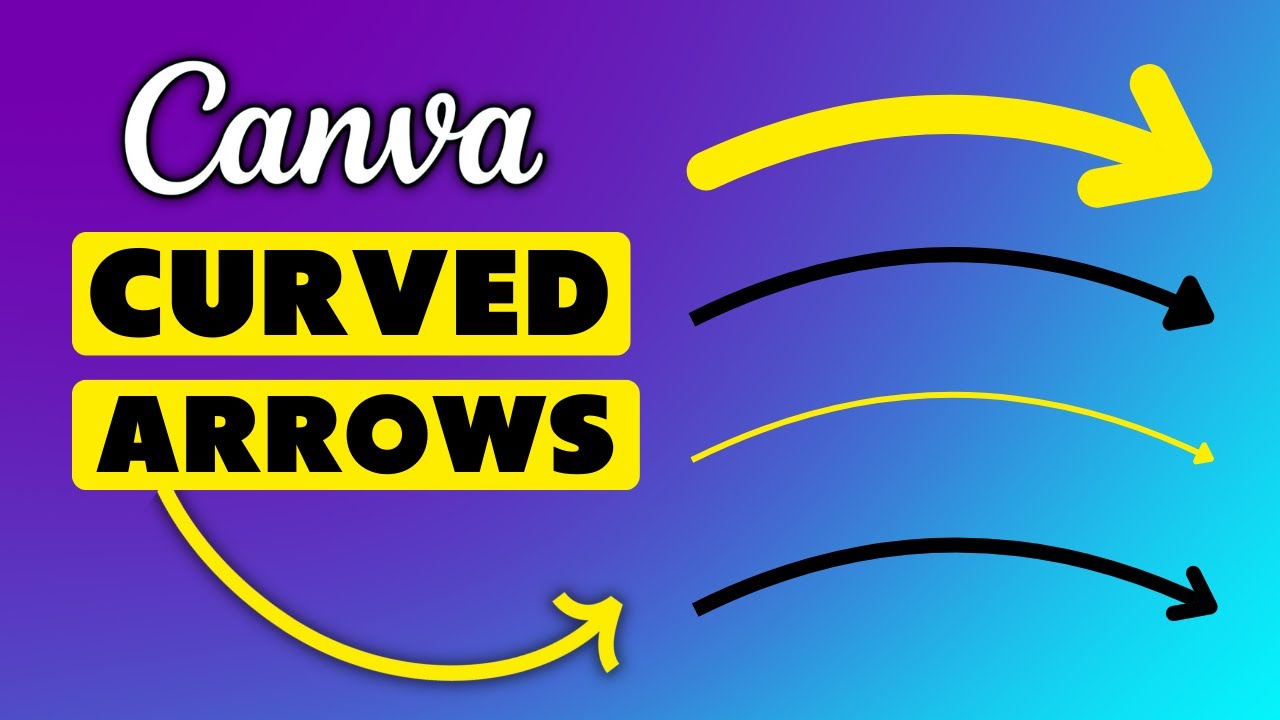
The Curved Arrow video effect is a dynamic visual tool designed to direct viewer attention in a specific direction. This effect is particularly useful in tutorials, presentations, and any video content where guiding the viewer's focus is essential. The curved arrow, with its smooth and elegant design, can subtly or prominently lead the eye to the desired area of the screen, enhancing the overall viewing experience. canva video alternative
Features
- Attention Guidance: The primary function of the Curved Arrow effect is to direct viewer attention. Whether you need to highlight a specific part of the screen or guide the viewer through a process, this effect ensures that your audience focuses on the right elements at the right time. FREE Video Effect
- Customizable Design: The Curved Arrow effect comes with various customization options. You can adjust the color, size, and curvature of the arrow to match your video's aesthetic and branding. Quote Video Effect
- Smooth Animation: The arrow features a smooth animation that makes it appear naturally on the screen. This animation can be adjusted to suit the pace and style of your video.
- Versatile Usage: This effect is versatile and can be used in a wide range of video types, from educational content to marketing videos. It is particularly effective in tutorials where step-by-step guidance is crucial. Target Video Effect
- Easy Integration: Adding the Curved Arrow effect to your video is straightforward. With just a few clicks, you can integrate this effect into your project, making it a convenient tool for video creators. Chart Up Video Effect
When to Use Curved Arrow
- Tutorials and How-To Videos: In instructional content, the Curved Arrow effect can guide viewers through each step, ensuring they follow along accurately. FREE Video Effect
- Presentations: During presentations, use the Curved Arrow to highlight key points or direct attention to specific data on the screen.
- Marketing Videos: In promotional content, the Curved Arrow can draw attention to product features, special offers, or important information.
How to Apply
1. Select the Effect: In your video editing platform, navigate to the effects library and select the Curved Arrow effect. canva video alternative
2. Customize the Arrow: Adjust the color, size, and curvature of the arrow to fit your video's style.
3. Position the Arrow: Place the arrow on the screen where you want to direct viewer attention. Ensure it points accurately to the desired area.
4. Set the Animation: Configure the animation settings to control how the arrow appears and moves on the screen.
5. Preview and Adjust: Preview the video to see the effect in action. Make any necessary adjustments to the arrow's position, size, or animation. Quote Video Effect
6. Finalize the Video: Once satisfied with the effect, finalize your video and export it in your desired resolution. Target Video Effect
For additional effects, consider exploring options like the Like Button or the Follow Me effect to further enhance your video content.
Frequently Asked Questions
Ready to try AI video creation?
Start with 200 free credits. No credit card required.
Get Started Free200 credits included · Cancel anytime